How srtng works
01 What srtng does
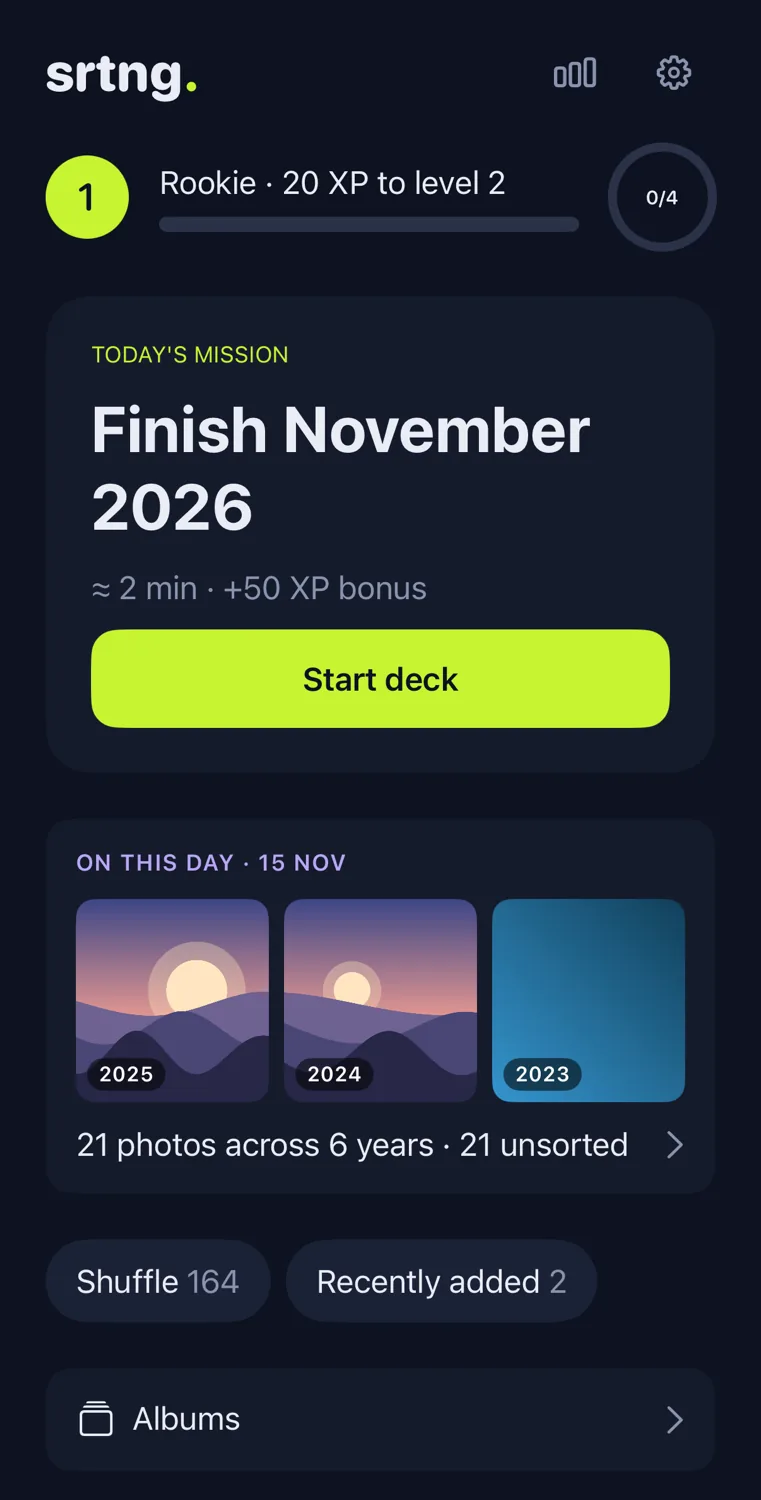
srtng helps you clean up your camera roll, a few photos at a time.
02 Start a deck
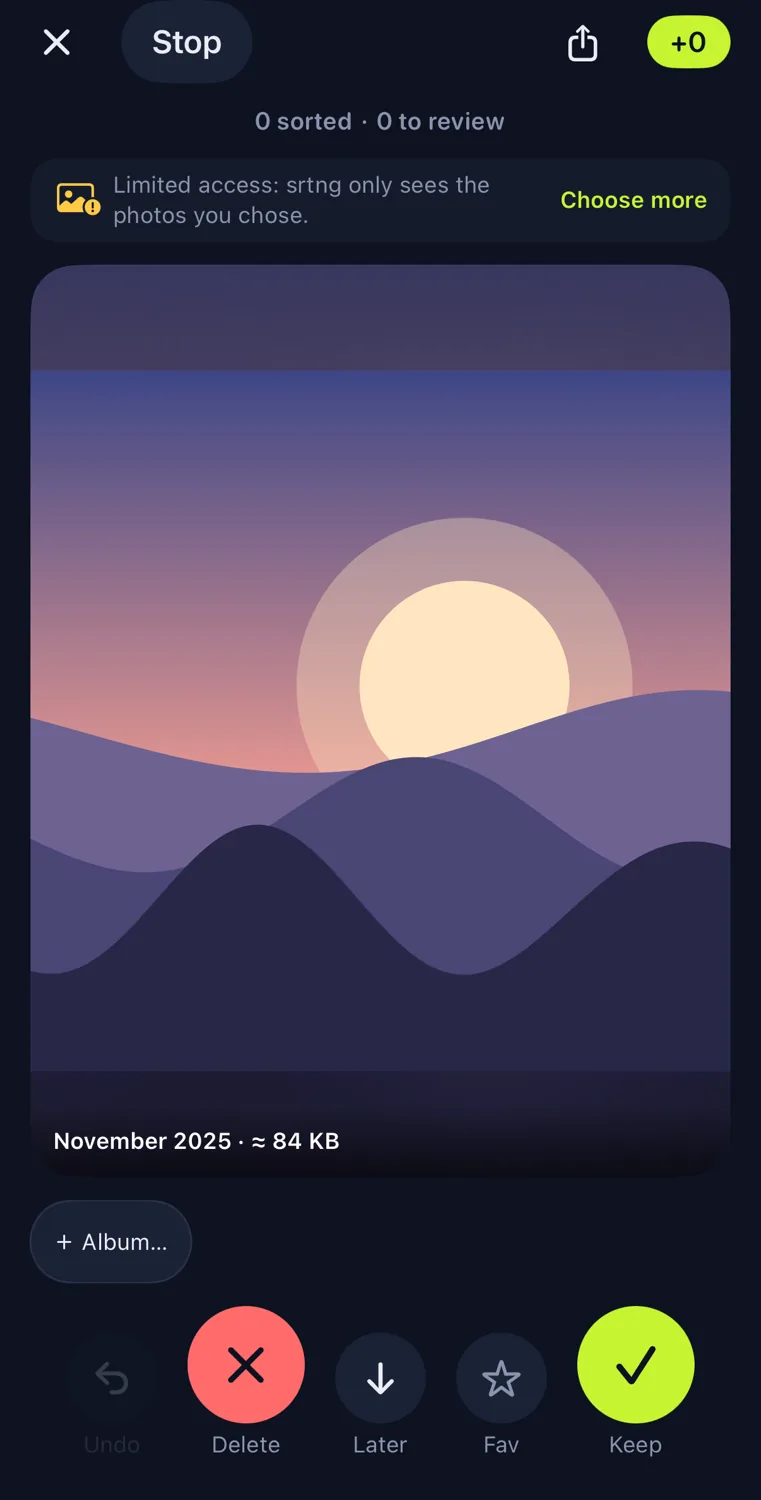
Tap Start deck. A deck is a small pile of photos to go through.

03 Swipe
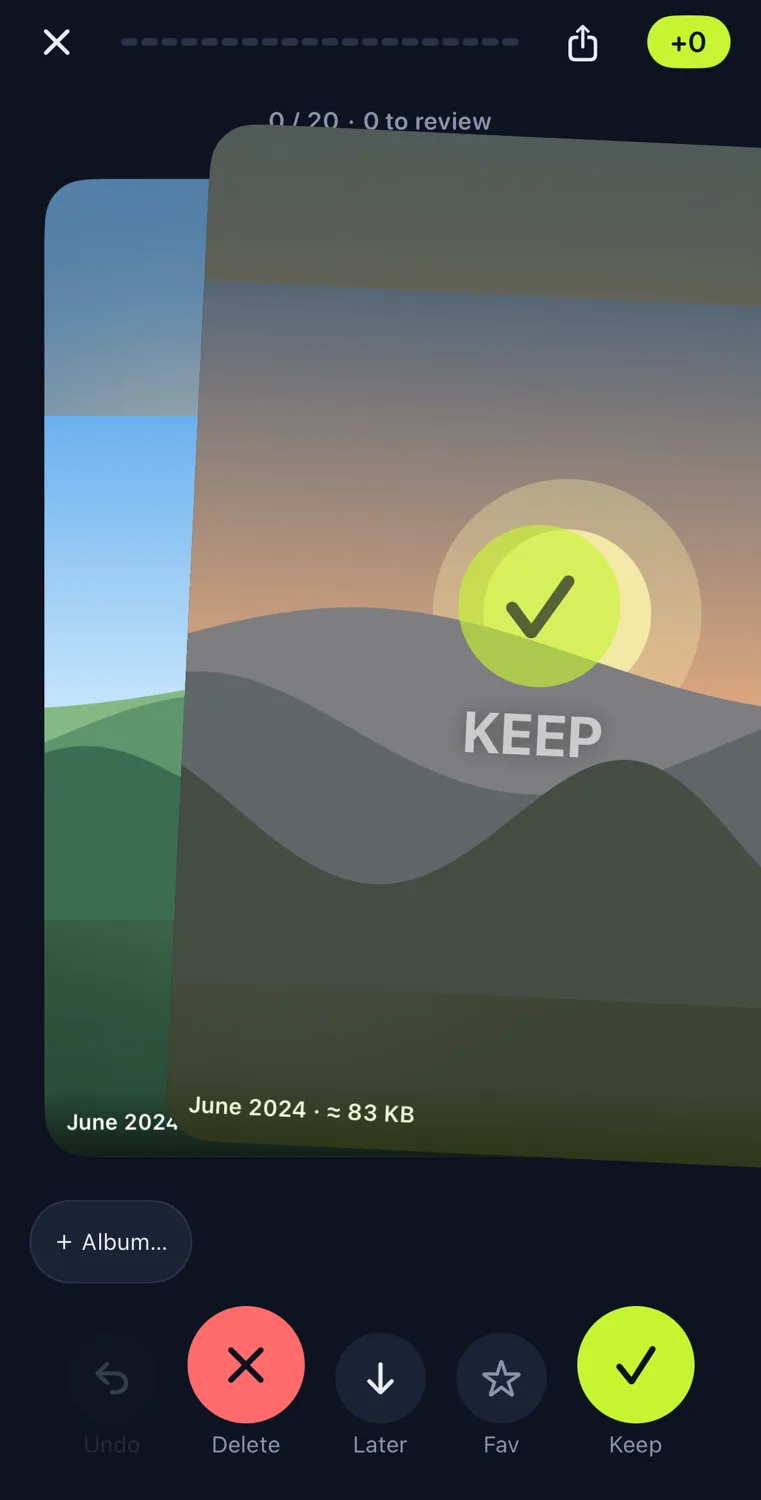
Swipe right to keep a photo. Swipe left to delete it.
04 The buttons
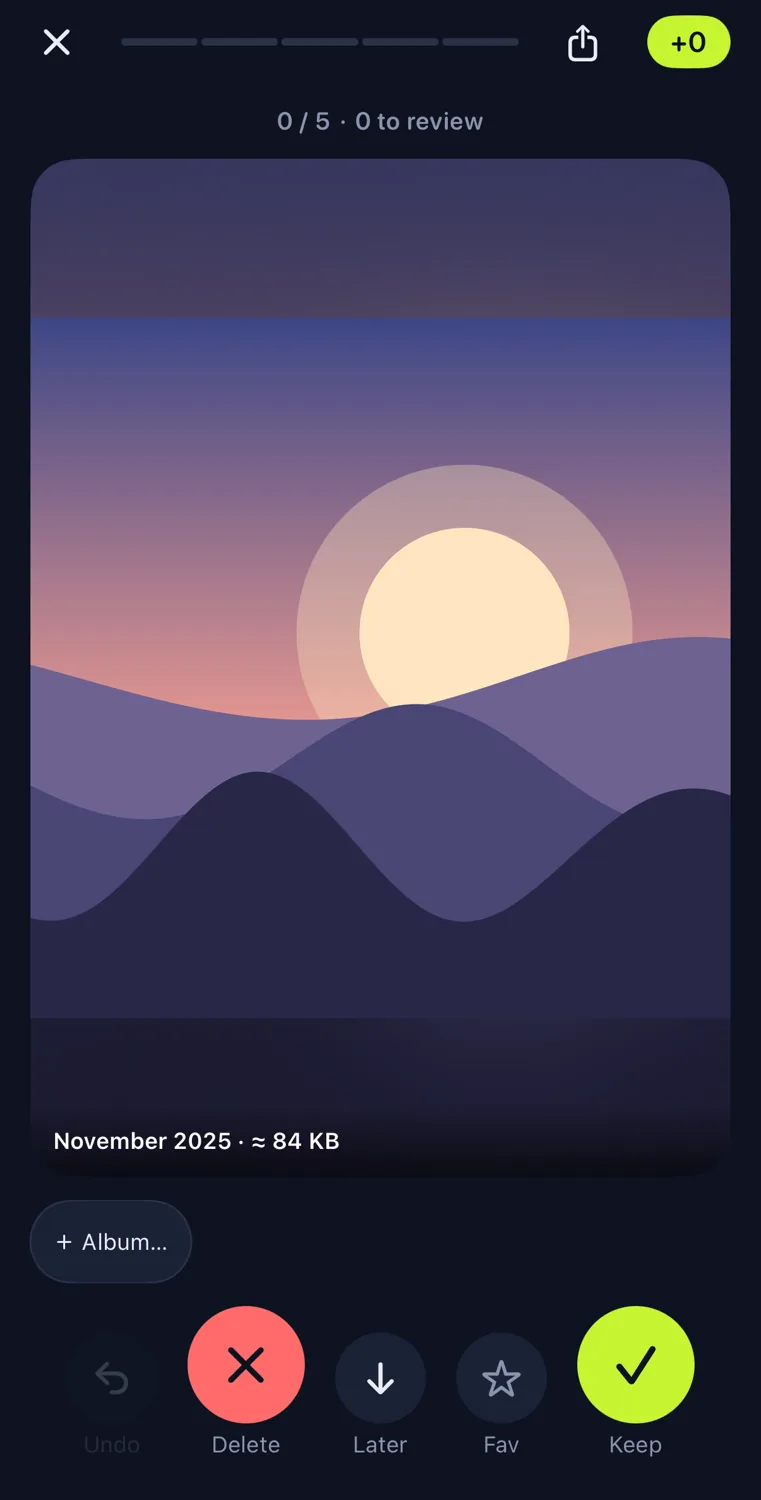
Not sure? Tap Later. Love it? Tap Fav. Made a mistake? Tap Undo.
05 Albums
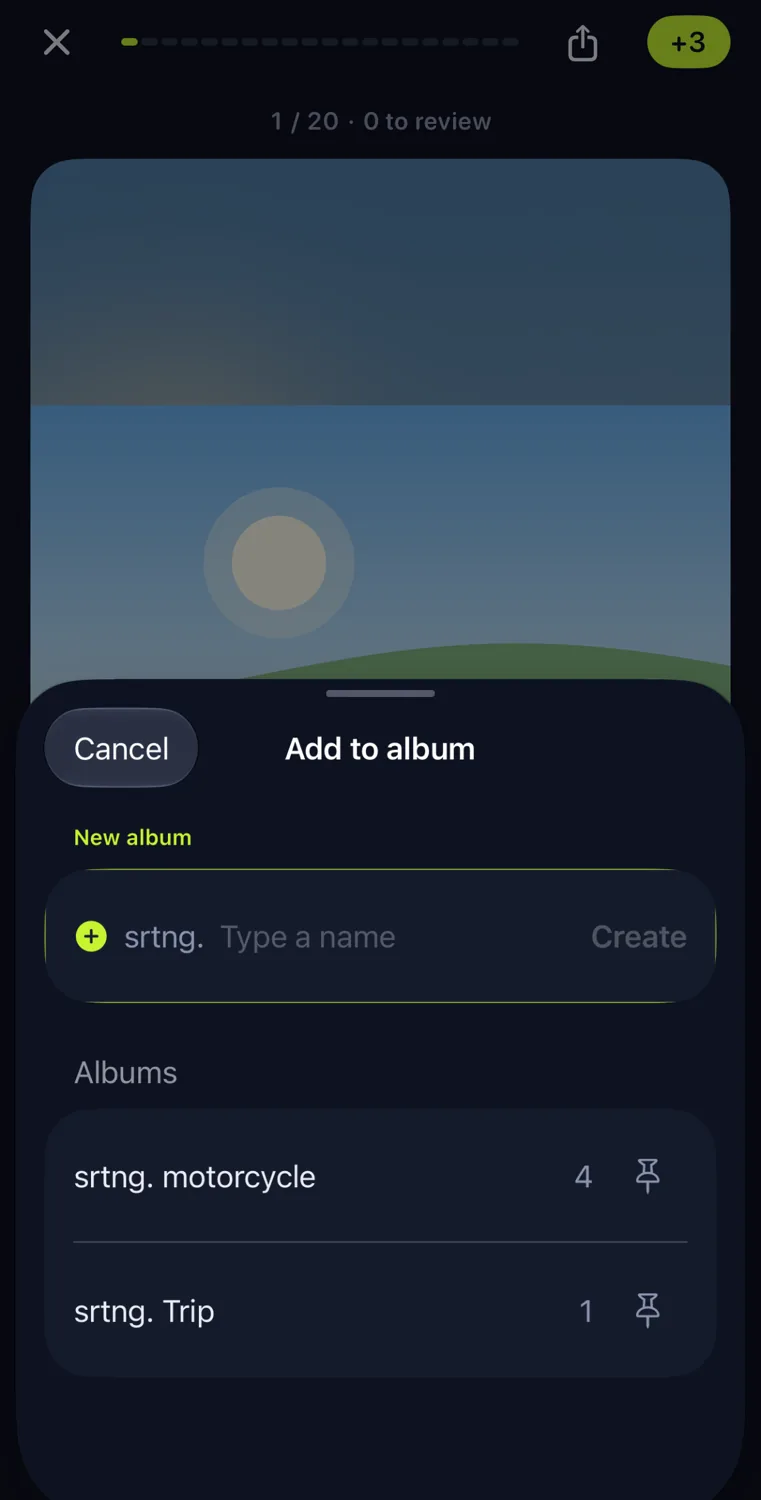
Tap + Album to put a photo in an album.
06 Nothing is deleted by surprise
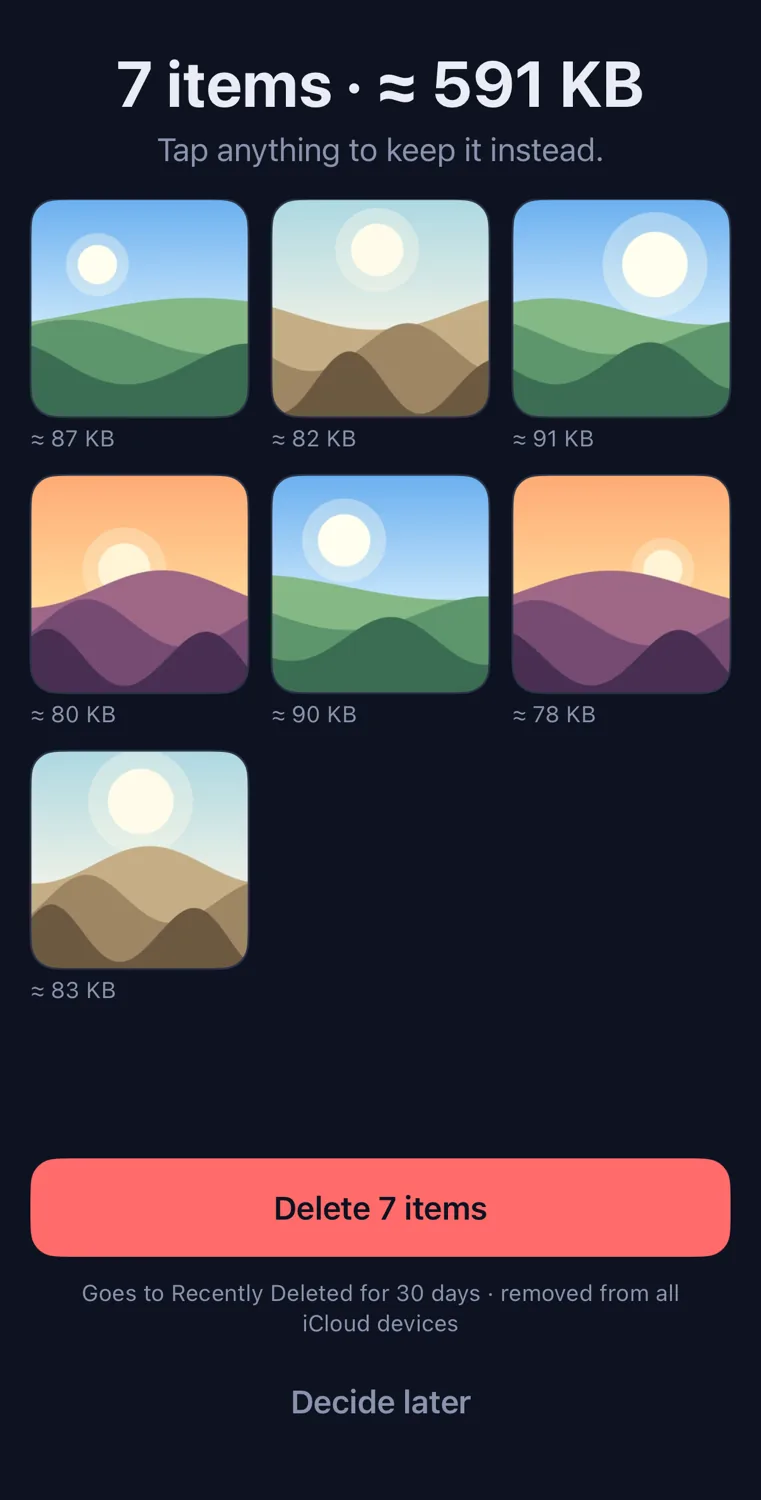
At the end you see everything you chose to delete. Tap a photo to keep it. iOS asks once more, and deleted photos stay in Recently Deleted for 30 days.
07 Other decks
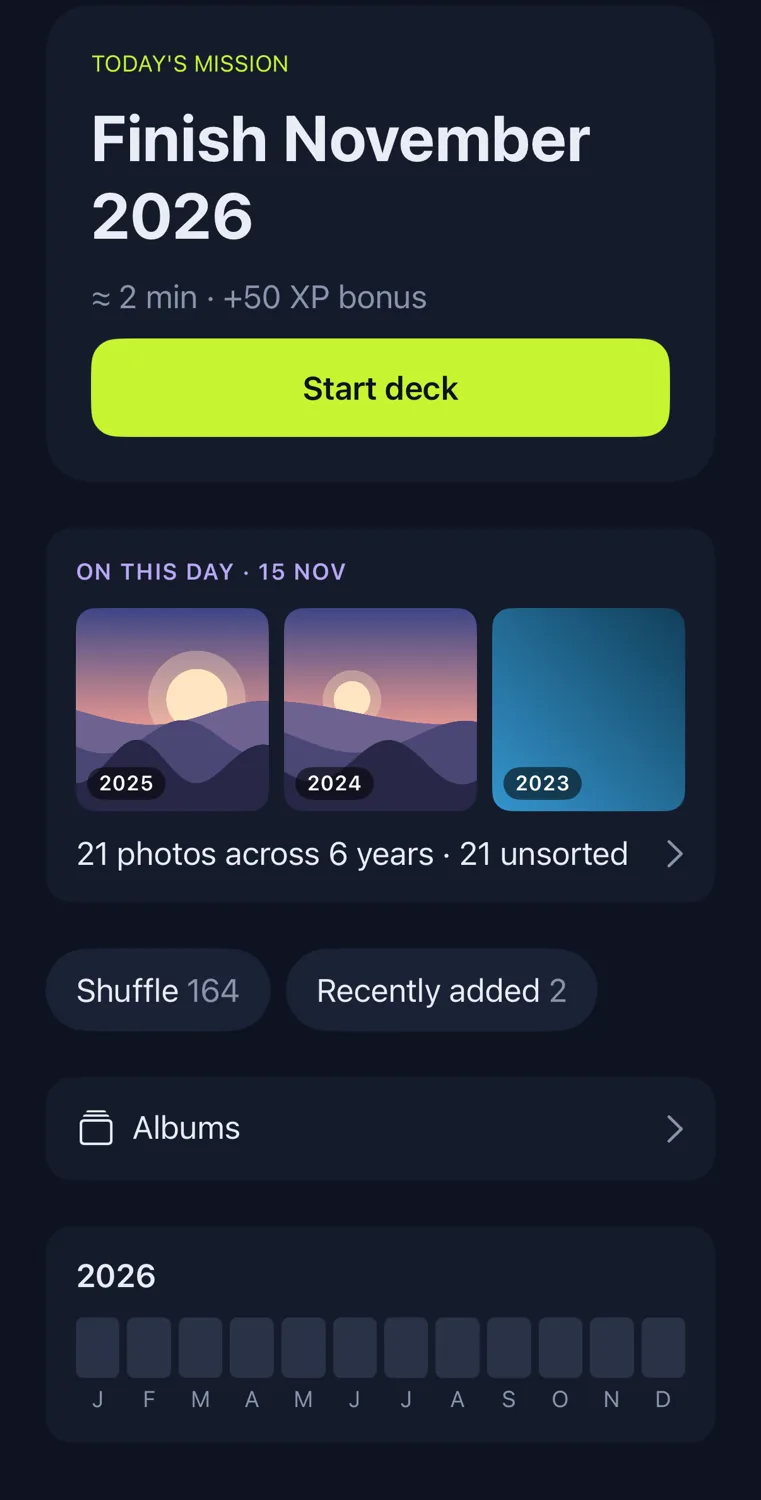
Sort by month, screenshots, videos, albums, or photos from this day in past years.
08 Your progress
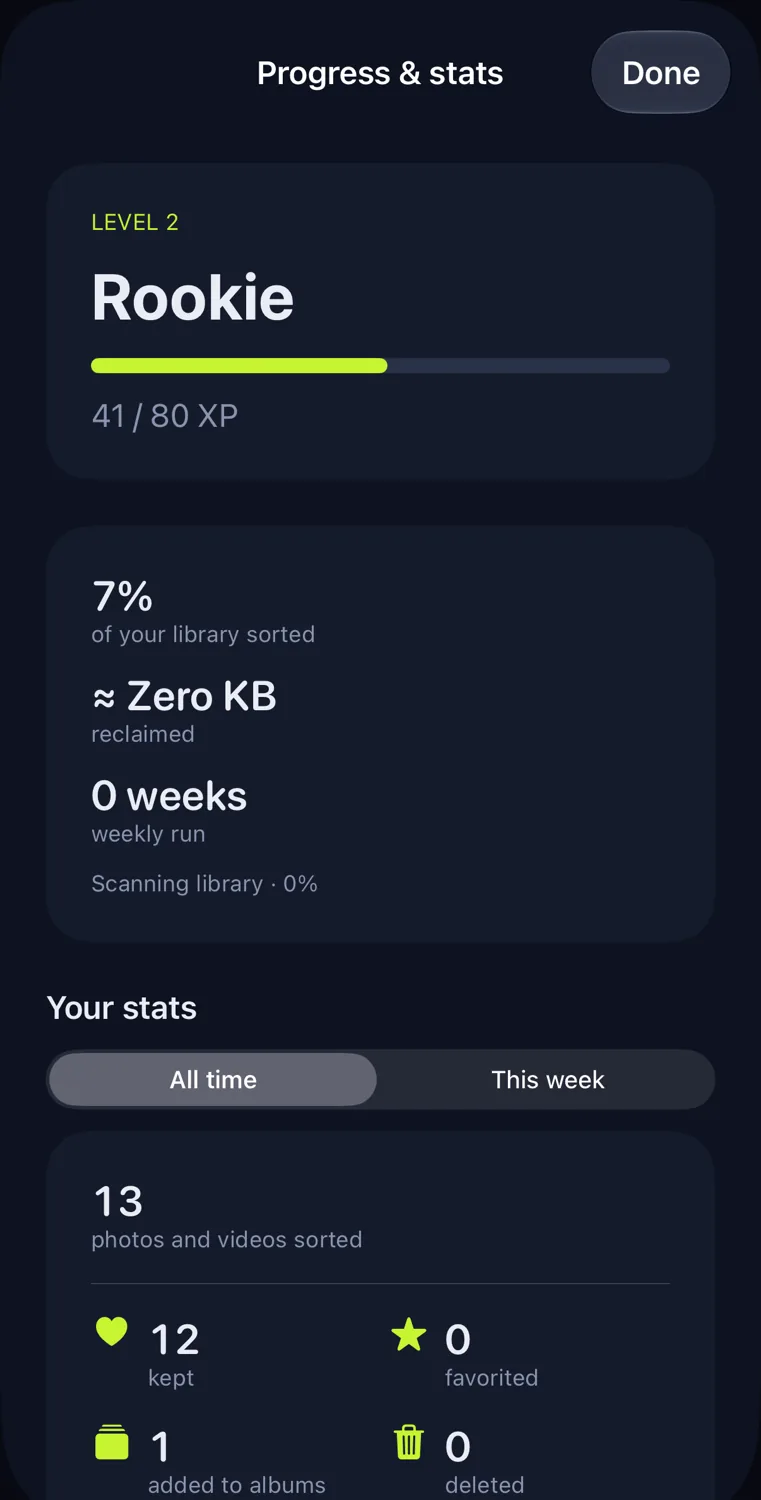
You earn points and level up for every photo you decide on, whether you keep it or delete it.
09 Free and Lifetime
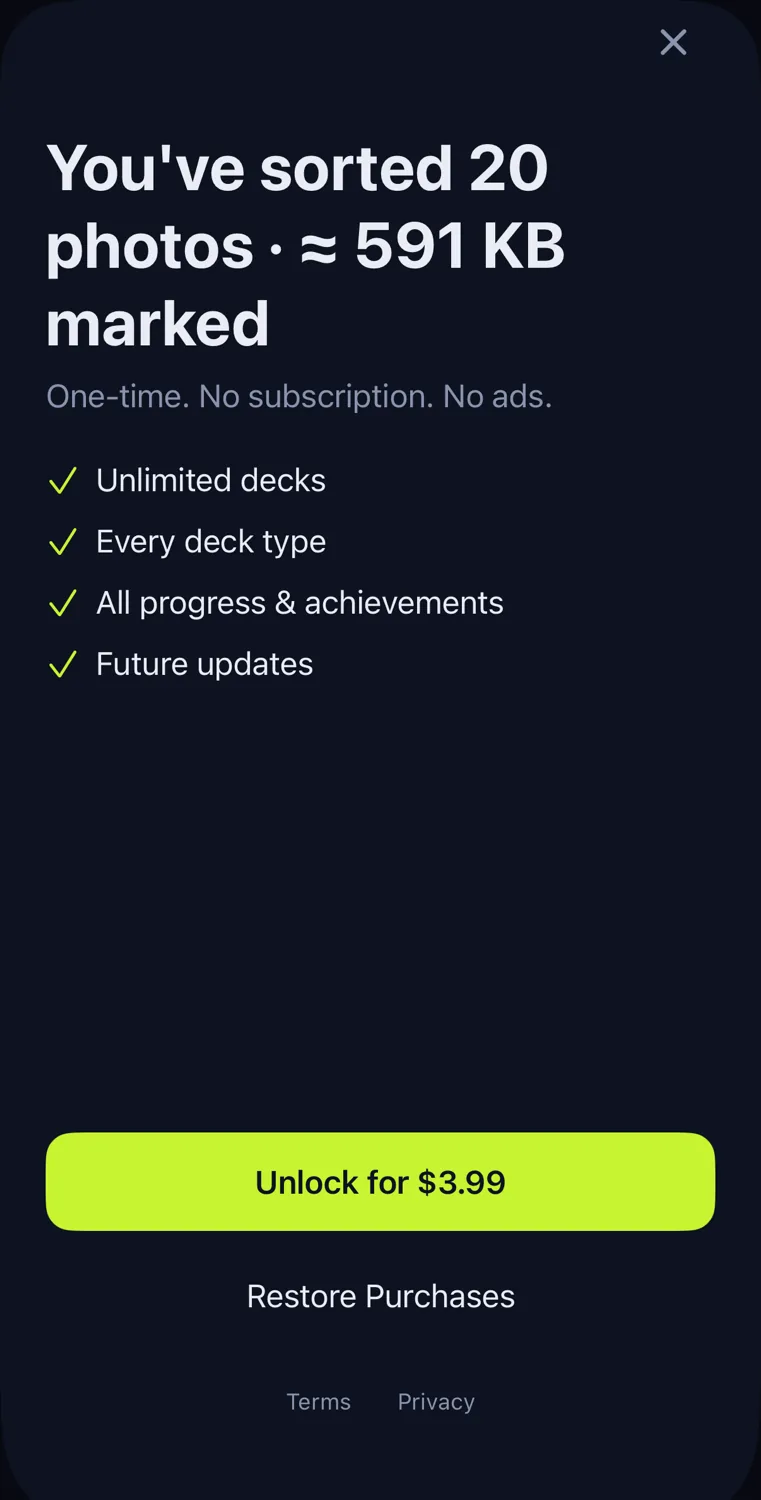
Your first 10 decks are free. One payment unlocks unlimited decks.
10 Only seeing some photos?
If you chose Limited Access, tap Choose more, or allow all photos in iOS Settings.
srtng is out now on the App Store, for iPhone.
get srtng on the app store →Still stuck?
Write to support@appenablement.com and tell us what you were trying to do. The privacy policy covers what srtng does with your photos.